DFIR Series: Windows Defender Tamper Protection
Windows Defender Tamper Protection is a security feature designed to prevent malicious actors or unauthorized programs from modifying or disabling key security settings in Windows Defender Antivirus. Understanding this feature is crucial for DFIR professionals investigating potential compromises.
Contents
| Section | Description |
|---|---|
| Effects of Tamper Protection | What happens when tamper protection is enabled |
| Check Tamper Protection Status | How to verify protection status |
| Configure/Manage Tamper Protection | Management options and methods |
| Detecting & Alerting on Tamper Protection | Detection mechanisms and event logs |
| DFIR Considerations | Investigation guidance and artifacts |
| References | Additional resources |
When Tamper Protection is enabled, it helps safeguard critical Windows Defender features, including real-time protection, cloud-based protection, behavior monitoring, and more. It prevents unauthorized changes to these security components, ensuring that they remain active and effective in defending your system against malware and other threats.
Tamper protection is available for devices that are running one of the following versions of Windows:
- Windows 10 and 11 (including Enterprise multi-session)
- Windows Server 2022, Windows Server 2019, and Windows Server, version 1803 or later
- Windows Server 2016 and Windows Server 2012 R2 (using the modern, unified solution)
For Windows Server 2012 R2, 2016, or Windows version 1709, 1803, or 1809, Tamper Protection would not appear in the Windows Security app. Instead, you can use PowerShell to determine whether tamper protection is enabled.
Effects of Tamper Protection
Based on the Microsoft Documentation, the following behaviors would be available when tamper protection is turned on:
- Virus and threat protection remains enabled
- Real-time protection remains turned on
- Behavior monitoring remains turned on
- Antivirus protection, including IOfficeAntivirus (IOAV) remains enabled
- Cloud protection remains enabled
- Security intelligence updates occur
- Automatic actions are taken on detected threats
- Notifications are visible in the Windows Security app on Windows devices
- Archived files are scanned
Check Tamper Protection Status
You can check the tamper protection status using PowerShell:
Get-MpComputerStatus | Select-Object IsTamperProtected
Or via the Windows Security App:
- Open Windows Security
- Navigate to Virus & threat protection
- Click on Virus & threat protection settings
- Look for the Tamper Protection toggle

Configure/Manage Tamper Protection
The options on how to configure/manage tamper protection are listed below:
| Method | What you can do |
|---|---|
| Microsoft 365 Defender portal | Turn tamper protection on (or off), tenant wide. This method won’t override settings managed in Microsoft Intune or Configuration Manager with tenant attach. |
| Microsoft Intune admin center | Turn tamper protection on (or off), tenant wide, or apply to some users/devices. You can exclude certain devices from tamper protection. Also protect Microsoft Defender Antivirus exclusions from tampering. |
| Configuration Manager with tenant attach | Turn tamper protection on (or off), tenant wide, or apply to some users/devices. You can exclude certain devices from tamper protection. |
| Windows Security app | Turn tamper protection on (or off) on an individual device that isn’t managed by a security team (such as devices for home use). This method won’t override tamper protection settings managed by enterprise solutions. |
Detecting & Alerting on Tamper Protection
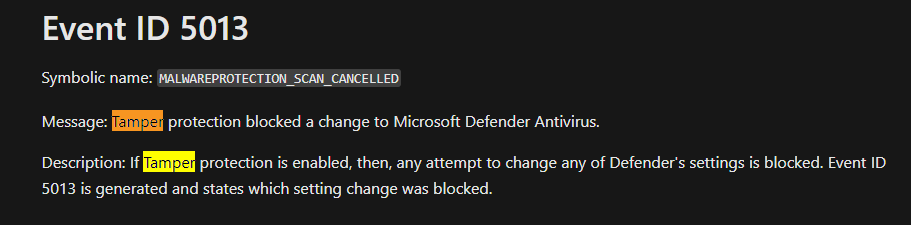
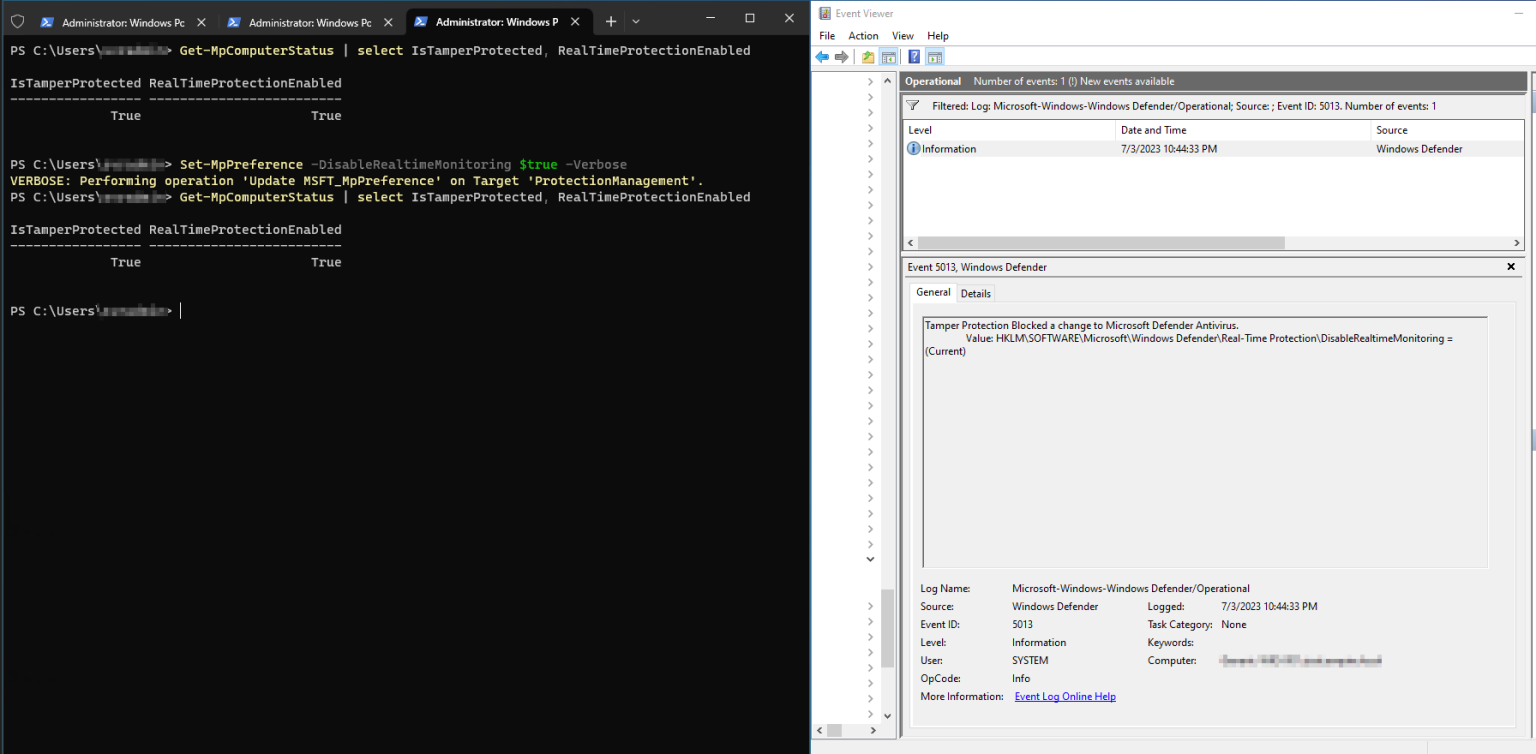
Whenever a tampering attempt is observed, for example like trying to disable Defender realtime monitoring with tamper protection enabled, a Windows Event Log would be generated with the Event ID 5013.
If Microsoft Defender for Endpoint (MDE) is present, an alert is raised in the Microsoft 365 Defender portal.
Event ID 5013
According to Microsoft documentation:
Log Name: Microsoft-Windows-Windows Defender/Operational
Event ID: 5013
Level: Warning
Description: Tamper Protection blocked a change to Microsoft Defender Antivirus
PowerShell Detection
You can query for tamper protection events using PowerShell:
Get-WinEvent -FilterHashtable @{
    LogName = 'Microsoft-Windows-Windows Defender/Operational'
    Id = 5013
} | Select-Object TimeCreated, Message
Tamper Protection in Action
When an attacker or malicious software attempts to disable Windows Defender protections, Tamper Protection blocks the attempt and generates an alert:
The Microsoft 365 Defender portal will show alerts for tampering attempts:
DFIR Considerations
When investigating potential compromises, consider the following:
- Check if Tamper Protection is enabled - A disabled tamper protection could indicate a compromise
- Review Event ID 5013 logs - These events indicate tampering attempts
- Correlate with other security events - Tampering attempts often precede other malicious activity
- Check for exclusions - Attackers may add exclusions to bypass detection
Key Registry Locations
HKLM\SOFTWARE\Microsoft\Windows Defender\Features\TamperProtection
HKLM\SOFTWARE\Microsoft\Windows Defender\Features\TamperProtectionSource
Detection Query (KQL)
For environments with Microsoft Sentinel or MDE Advanced Hunting:
DeviceEvents
| where ActionType == "TamperingAttempt"
| project Timestamp, DeviceName, InitiatingProcessFileName, InitiatingProcessCommandLine
| order by Timestamp desc
Key Takeaways
| Concept | Key Point |
|---|---|
| Purpose | Prevents malicious actors from disabling Windows Defender protections |
| Key Event | Event ID 5013 indicates a blocked tampering attempt |
| Registry Location | HKLM\SOFTWARE\Microsoft\Windows Defender\Features\TamperProtection |
| Detection | Use PowerShell Get-MpComputerStatus or Windows Security app |
| DFIR Indicator | Disabled tamper protection may indicate compromise |
| MDE Integration | Alerts raised in Microsoft 365 Defender portal for tampering attempts |